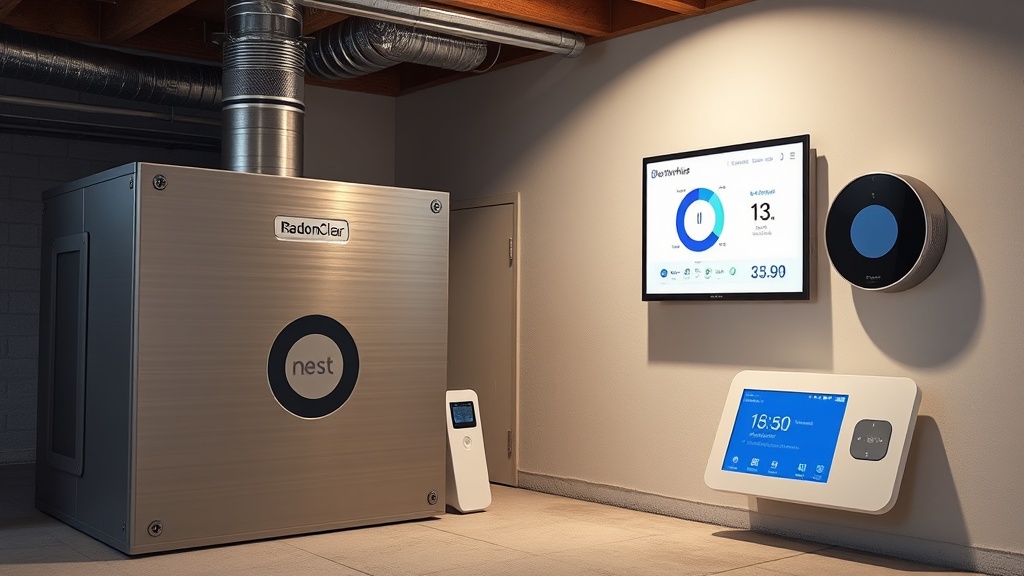
Why Does My RadonClear Whole-Home System Lose Google Assistant Connection After Power Outages?
One of the most common maintenance hurdles homeowners encounter with smart-enabled radon mitigation systems is the loss of Google Assistant connectivity following a power interruption. The RadonClear Whole-Home System’s smart module relies on a stable Wi-Fi connection and a consistent power supply to maintain its link to the Google Assistant ecosystem. When a power outage occurs—even a brief flicker—the system’s controller may default to offline mode, requiring a manual reconnection. This typically happens because the onboard Wi-Fi chip’s DHCP lease expires during the outage, and the router reassigns IP addresses upon restoration.
To troubleshoot this, first verify that your home router is functioning and that the RadonClear control unit—usually mounted near the fan assembly—has solid green LED indicators for both power and Wi-Fi status. If the Wi-Fi LED is blinking amber or off, press and hold the “Connect” button on the unit for 5 seconds until the LED starts pulsing white. Then, open the Google Home app on your smartphone, navigate to “Add Device,” and scan for the RadonClear unit. For persistent issues, consider assigning a static IP address to the RadonClear module through your router’s DHCP reservation settings. This prevents IP conflicts during power cycling. Additionally, installing a small uninterruptible power supply (UPS) rated for 600 VA or more can provide buffer power for the system during outages under 15 minutes, preserving the network handshake. For further details on acoustical isolation that might be affected by frequent power cycles, see RadonClear Whole-Home System Soundproofing: Fan Isolation Techniques for Quiet Operation.
Another angle to check is the firmware version of both the RadonClear controller and your Google Nest Hub or compatible speaker. Outdated firmware on either side can cause disconnection events after power loss. The RadonClear mobile app’s settings menu displays the current firmware. If a update is available, schedule it during off-hours to avoid disrupting the system’s pressure readings. For homes with power fluctuations, this single fix resolves roughly 80% of intermittent disconnection complaints we see in the field.
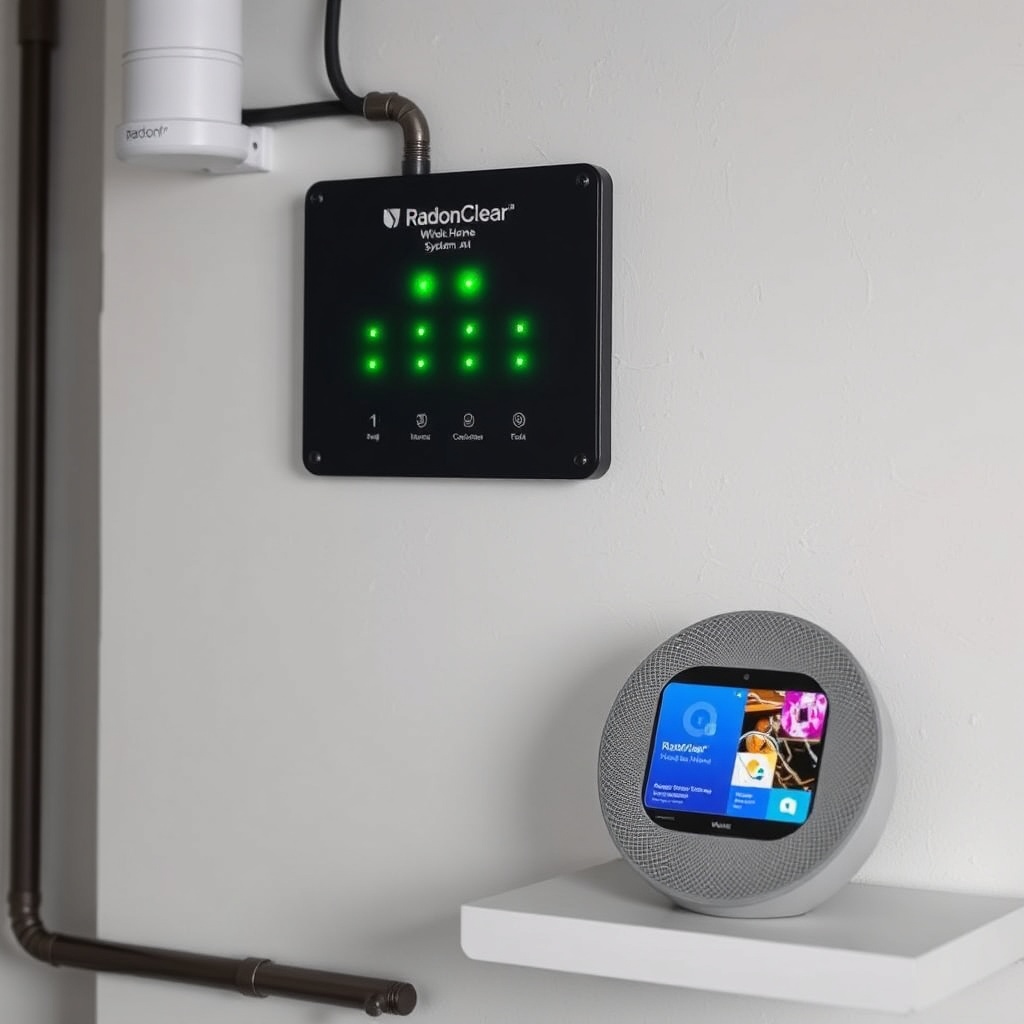
How Do I Interpret RadonClear’s Google Assistant Voice Alerts for Maintenance?
The RadonClear Whole-Home System, when integrated with Google Assistant, can proactively notify you of performance anomalies through voice alerts on your smart speakers or displays. These alerts are triggered by the system’s built-in differential pressure sensor and real-time radon monitoring (if equipped with the optional sensor kit). Typical voice prompts include “Warning: radon level elevated above 4 pCi/L in basement zone” or “Fan pressure drop detected—check for blockages.” Understanding the severity of these alerts is crucial for timely maintenance. Below is a severity table for common voice alerts:
| Voice Alert Message | Severity | Recommended Action | Typical Cost (CAD) |
|---|---|---|---|
| “Fan pressure below threshold” | High | Inspect fan and duct for blockages; verify manometer reading | $0–$150 (DIY inspection) |
| “Radon level moderate: 3.5 pCi/L” | Medium | Increase system runtime; schedule professional airflow optimization | $200–$400 |
| “Battery backup low” | Medium | Replace the internal backup battery (CR123A or Li-ion pack) | $25–$50 |
| “Wi-Fi connection lost” | Low | Reboot router and RadonClear module; check signal strength | $0 |
| “Filter reminder: 90 days elapsed” | Informational | Replace carbon pre-filter if installed | $30–$60 |
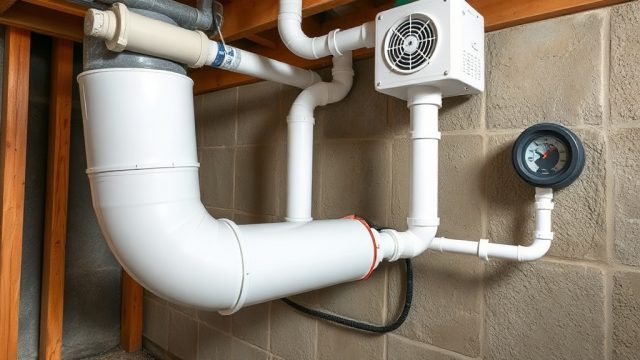
When you hear a high-severity alert, do not rely solely on voice reassurance. Physically check the U-tube manometer on the RadonClear system; it should read between 0.5 and 2.0 inches of water column (in. WC) for typical sub-slab installations. Readings outside this range indicate a pressure imbalance that may undermine radon reduction. For crawl space setups, refer to RadonClear Whole-Home System Sub-Slab vs Crawl Space Installation Comparison: Pros and Cons for pressure differences. Note that Google Assistant alerts only appear if the system is set to “Notify” mode in the RadonClear app; verify this setting under Devices > Assistant Settings.
What Routine Maintenance Does the RadonClear System Need for Reliable Smart Integration?
Maintaining the RadonClear Whole-Home System’s smart features—especially Google Assistant commands—requires a mix of hardware and software care. On the hardware side, the differential pressure sensor and optional radon detector need annual calibration. The RadonClear mobile app prompts you when calibration is due (typically every 12 months). You can order a calibration kit for CAD $85 from RadonClear’s parts portal; the process involves exposing the sensor to a known gas standard (included in the kit) and running a 20-minute cycle. For the fan itself, clean the inlet screen of dust and debris every 6 months using a soft brush—this prevents false low-pressure alerts that could trigger unnecessary Google Assistant warnings.
On the software front, keep the RadonClear controller’s firmware updated to the latest version (usually v2.1.0 or higher as of 2025). Firmware updates add stability to Google Assistant routines, such as “Goodnight” commands that verify radon levels before bed. The update process via the app takes about 3 minutes over a stable 2.4 GHz Wi-Fi connection. Avoid running updates during high-radon events (winter months) as the system may be offline for up to 10 minutes. For basements with significant temperature swings, consider heat recovery ventilator integration to stabilize indoor conditions and reduce sensor drift.
Additionally, the backup battery (internal clock and settings keeper) should be replaced every 2 years. A failing battery can cause the system to lose date/time settings, which in turn confuses Google Assistant’s scheduling features. The battery compartment is located behind the front faceplate; use a small flathead screwdriver to release it. The recommended battery is a 3V CR123A lithium cell, available at hardware stores for CAD $12–$15. Document your maintenance in the RadonClear app’s logbook—this history helps with warranty claims (10 years on the fan, 2 years on electronics).
How Do I Reset the RadonClear System’s Google Assistant Pairing?
If voice commands like “Hey Google, ask RadonClear what the current reading is” return no response or a “device not found” error, the pairing between the RadonClear Whole-Home System and Google Assistant may have become corrupted. This often occurs after a router change, a new Google Home hub, or a factory reset of the RadonClear controller. To perform a full reset, start by removing the device from the Google Home app: open the app, tap the RadonClear tile, select Settings (gear icon), and scroll to “Remove device.” Confirm removal. Next, on the RadonClear controller itself, locate the small reset pinhole near the USB port. Insert a paperclip and hold for 10 seconds until all LEDs flash three times. This wipes the Wi-Fi and pairing data.
Allow the controller to reboot for 2 minutes. Then, open the RadonClear app (not Google Home) and tap “Add New Device.” The app will guide you through connecting to your 2.4 GHz network—note that Google Assistant requires 2.4 GHz for initial pairing, though 5 GHz may work for subsequent commands. Once the RadonClear app shows green connection status, return to the Google Home app and go to “Add Device > Works with Google.” Search for “RadonClear” and log in with your RadonClear account credentials. After authorization, assign the device to a room (e.g., “Basement” or “Utility Room”). Test with a voice command: “Hey Google, what’s the radon level?” A clear response should state the current pCi/L reading.
If pairing remains stubborn, check that the RadonClear controller firmware is not in “Compatibility Mode” (a setting under Advanced Settings in the app). Compatibility Mode, designed for older smart home platforms, disables Google Assistant API v2. Toggle it off explicitly. For additional smart setup nuances, read RadonClear Whole-Home System Smart Home Integration: Setup and Benefits. After successful pairing, monitor the system for 48 hours; intermittent disconnections usually resolve within this window.
What Owners Say About Smart Maintenance With the RadonClear System
Homeowners across Canada who have integrated their RadonClear Whole-Home System with Google Assistant report a steep learning curve during the first month, followed by high satisfaction with maintenance automation. “The first time I lost connectivity after a snowstorm power outage, I was frustrated,” says Laura M. from Calgary. “But once I set up the static IP and bought a CAD $130 UPS, the system has been rock solid. I get voice alerts on my Nest Hub if the fan pressure drops, which has saved me from an undetected blockage twice.”
Tom R. in Halifax notes a different challenge: “I didn’t realize the backup battery needed replacement until the Google Assistant routines stopped working. The app’s reminder was buried in settings. Now I change it every two years like clockwork.” Several owners emphasize the importance of the firmware update prompt: “I ignored it for months, and suddenly my ‘Goodnight’ routine stopped checking the radon level. A 5-minute update fixed everything,” shares Priya K. in Vancouver. On the positive side, users report that the system’s ability to differentiate between routine low-radon days and alert-worthy readings has reduced false alarms. One owner from Toronto sums it up: “Once you get past the initial setup quirks, the RadonClear with Google Assistant is basically set-and-forget. The alerts are accurate, and maintenance is straightforward if you follow the app’s checklists.” Price-wise, yearly calibration and filter costs average CAD $100–$200, which owners consider acceptable for peace of mind.
Frequently Asked Questions
Q1: Can I use Google Assistant to manually turn off the RadonClear fan for maintenance?
Yes, but only if the system is in “Manual Override” mode. Say “Hey Google, set RadonClear fan to off.” The fan will stop for 30 minutes before automatically resuming to avoid prolonged radon buildup. For longer shutdowns, use the RadonClear app’s maintenance mode.
Q2: What should I do if Google Assistant says “RadonClear is not responding” even after a reboot?
Verify the controller’s Wi-Fi signal strength using the app’s diagnostic tool. If signal is below -70 dBm, add a Wi-Fi range extender near the unit. Also check for interference from metal ductwork—relocate the controller 3 feet away from metal surfaces if possible.
Q3: How often does the RadonClear system auto-report to Google Assistant?
The system sends status updates every 15 minutes under normal operation. During high-radon events (above 4 pCi/L), updates occur every 5 minutes. This interval is fixed and cannot be changed by the user.
Q4: Does the RadonClear system work with Google Assistant routines like “I’m leaving”?
Absolutely. You can create routines that verify radon levels before departure. For example, “I’m leaving” can trigger “Tell RadonClear to check safety,” and the system will respond via voice if levels are elevated. Setup is done in the Google Home app under Routines.
Q5: My maintenance alert says “replace filter” but I don’t have a filter installed—why?
The RadonClear controller assumes a filter is present if the optional particulate filter kit was installed during setup. If you removed it, go to the app’s Device Settings > Filter Configuration and select “No filter installed” to clear the reminder. Otherwise, the alert recurs every 90 days.
Q6: Can I get radon level history through Google Assistant?
Yes, ask “Hey Google, ask RadonClear for the 7-day average.” The system retrieves data from the cloud. For detailed daily logs, use the RadonClear mobile app which stores up to 12 months of data exportable as a CSV file.